Welcome
Thank you for purchasing Boldline. Before getting started, we recommend reviewing this documentation. It provides all the essential information required to install, configure, and use the theme effectively. If you have any questions that are not covered here, please contact our support team.
What's Included
- boldline.zip – Main installable WordPress theme file.
- boldline-child.zip – Child theme, recommended for making custom code changes.
- Documentation – Complete user guide for installation and usage.
- Licensing – License details and terms of use.
Required Plugins
- Boldline Core – Core plugin required for theme functionality.
- Elementor – Drag-and-drop page builder.
- One Click Demo Import – Used for importing demo content.
- Contact Form 7 – Enables creation and management of contact forms.
Theme Requirements
You must be running WordPress 6.0+, PHP 7.4+, and MySQL 8+.
Recommended PHP Configuration Limits:
max_execution_time = 180
memory_limit       = 128M
post_max_size      = 32M
upload_max_filesize = 32M
Theme Installation
Installation via WordPress
- Go to Appearance > Themes in your WordPress Dashboard.
- Click Add New.
- Click Upload Theme, choose
boldline.zipand click Install Now. - After installation, click Activate.
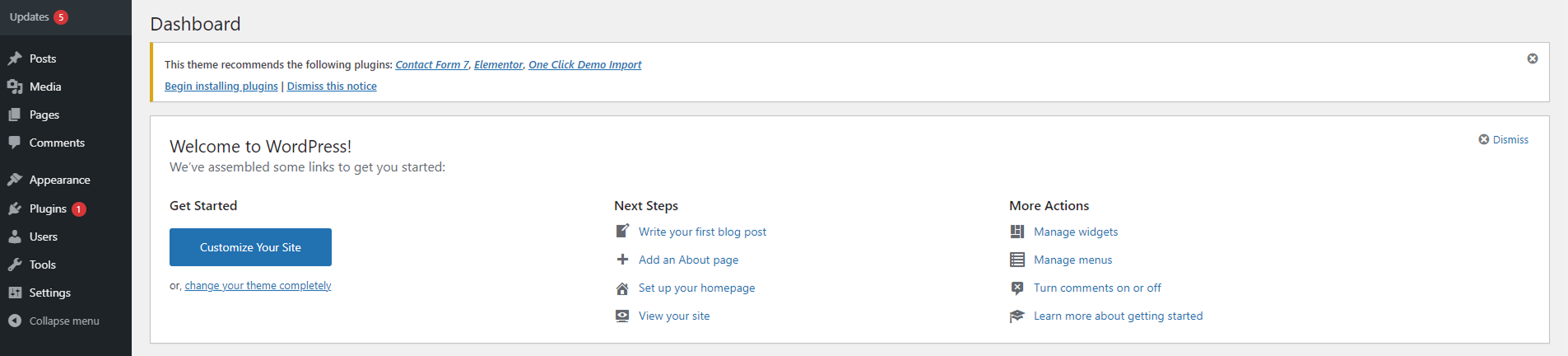
- Follow the notice to install required plugins.
Installation via FTP
- Log into your server via FTP and navigate to
wp-content/themes. - Upload the unzipped
boldlinefolder. - Activate the theme via WordPress Dashboard.
- Follow the notice to install required plugins.
Common Installation Errors
This usually occurs when you upload the full package instead of
boldline.zip or server memory/upload limits are too low.
Ensure you upload only
boldline.zip.
Demo Import
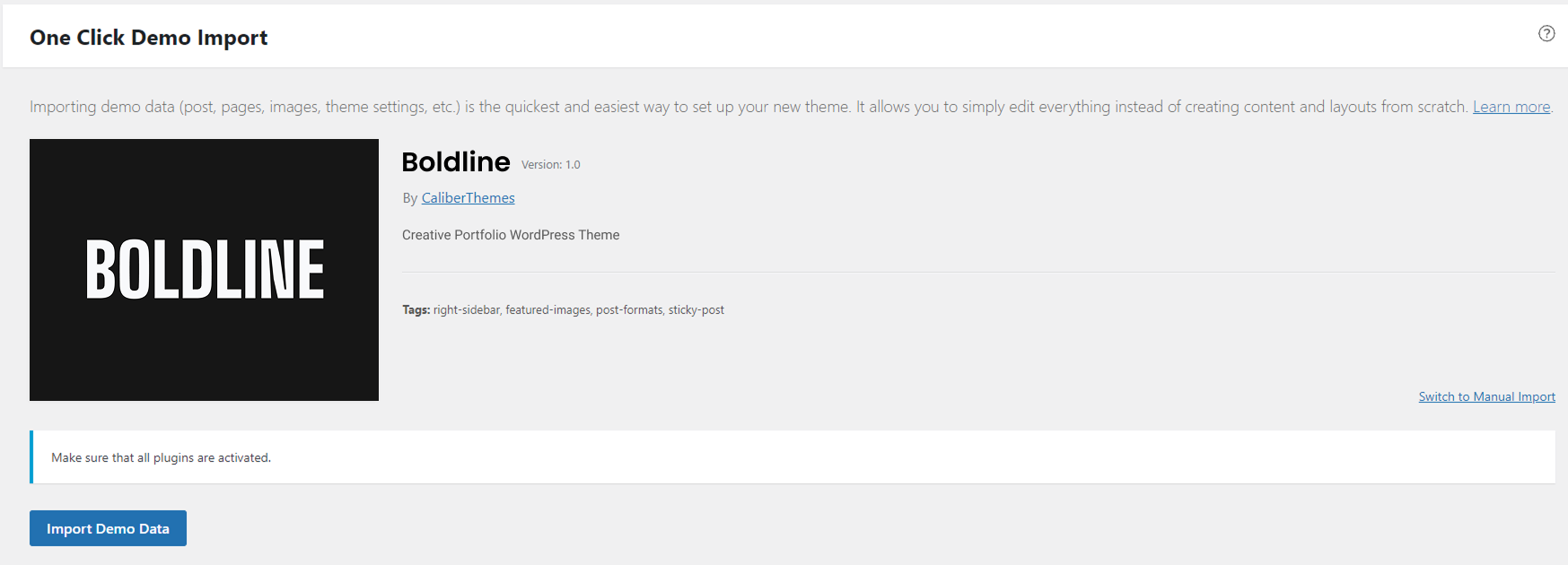
- Go to Appearance > Import Demo Data.
- Click Import Demo Data and wait until completion.
Do not close or navigate away from the browser while importing.
Theme Updates
Updating Boldline is similar to installation.
Via Dashboard
- Deactivate current theme, activate another temporarily.
- Delete old Boldline theme (content stays intact).
- Install latest version as usual.
Via FTP
- Delete old theme folder from
wp-content/themes. - Upload latest unzipped Boldline folder.
- Activate theme via Dashboard.
Remember to clear your browser cache after updates.
Customize
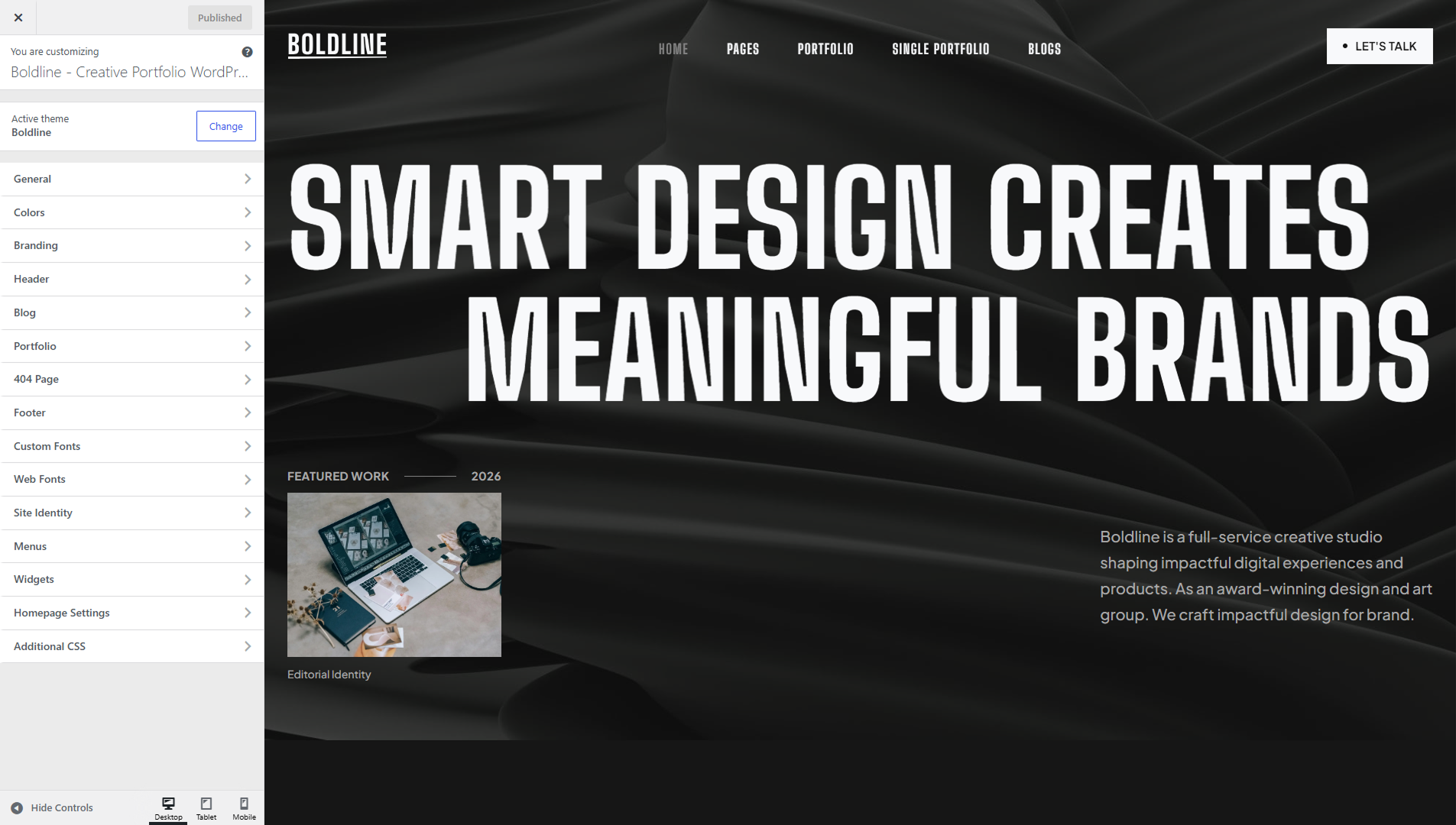
Boldline comes with advanced options to customize styles and layouts:
- General – Scroll to Top, JS Minification, Animation.
- Colors – Manage global colors via Elementor Site Settings.
- Branding – Upload Logo, set Logo Width.
- Header – Choose variants, sticky header, styles.
- Blog – Control blog banner, typography, single post settings.
- Portfolio – Configure portfolio settings, archive banner.
- 404 Page – Custom title and description.
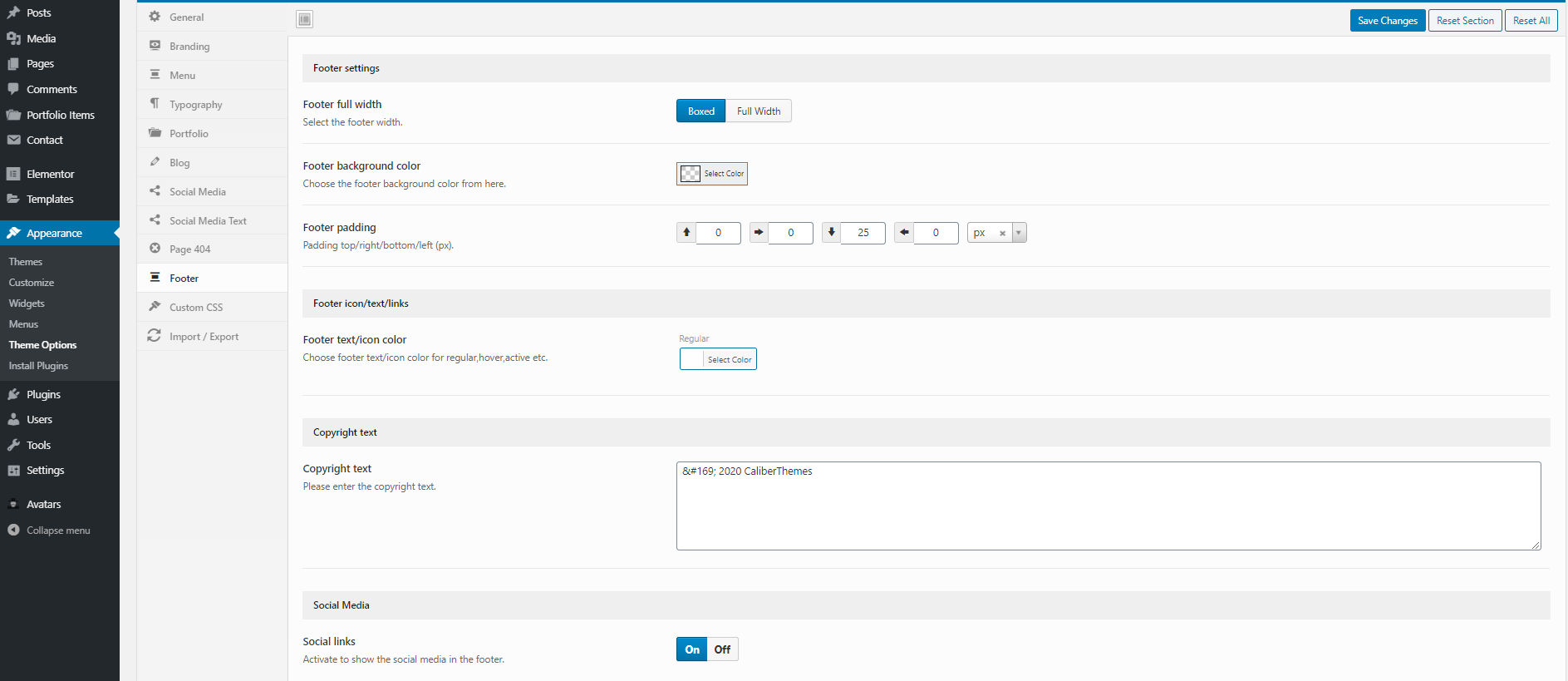
- Footer – Layout, settings, social icons.
- Custom Fonts – Upload/manage fonts.
Page & Page Builder
Create a New Page
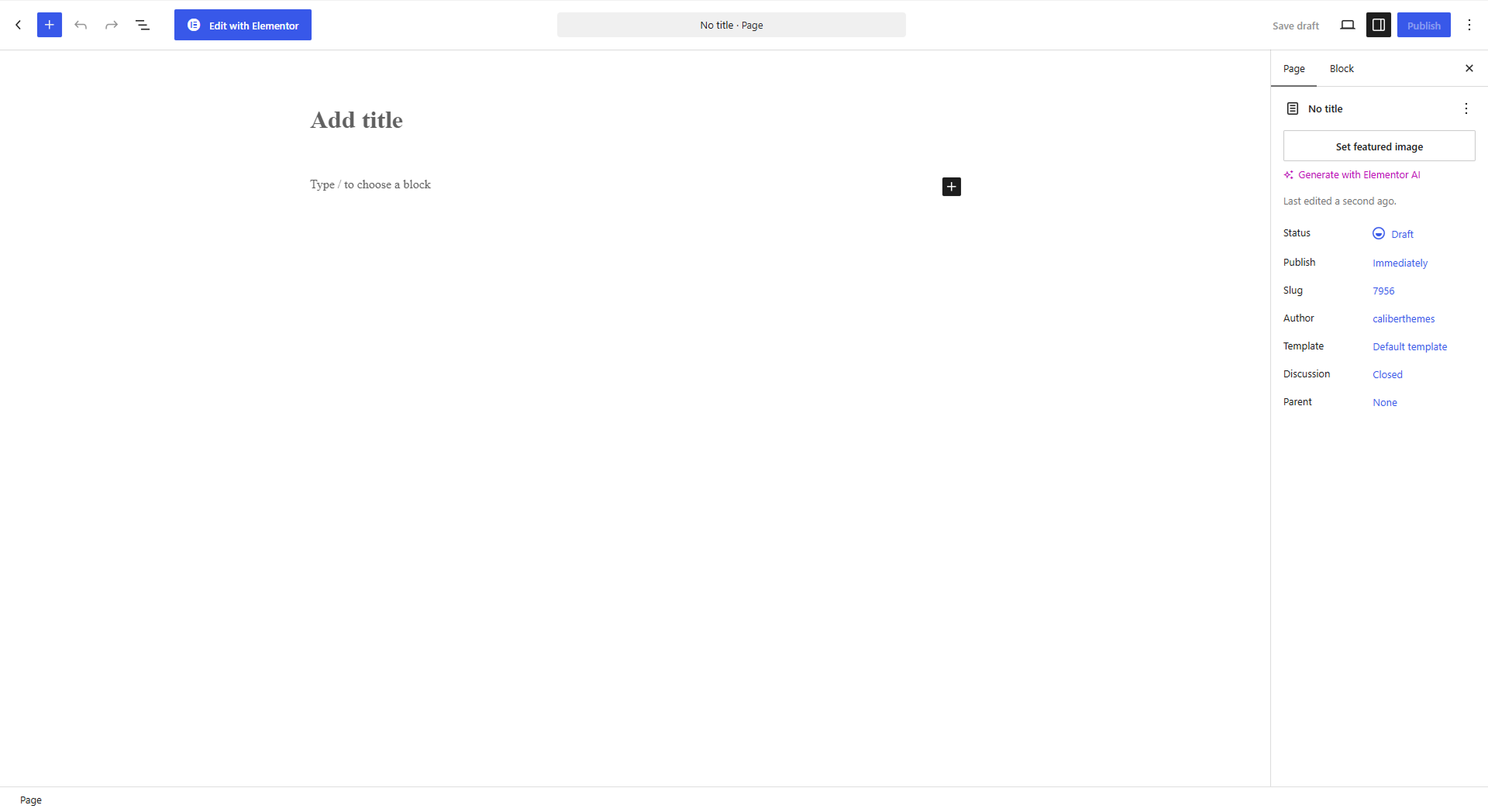
- Go to Pages > Add New.
- Enter page title, content, and click Publish.
Elementor Page Builder
Boldline is designed to work with Elementor for page design. For more details, see the Elementor Documentation.
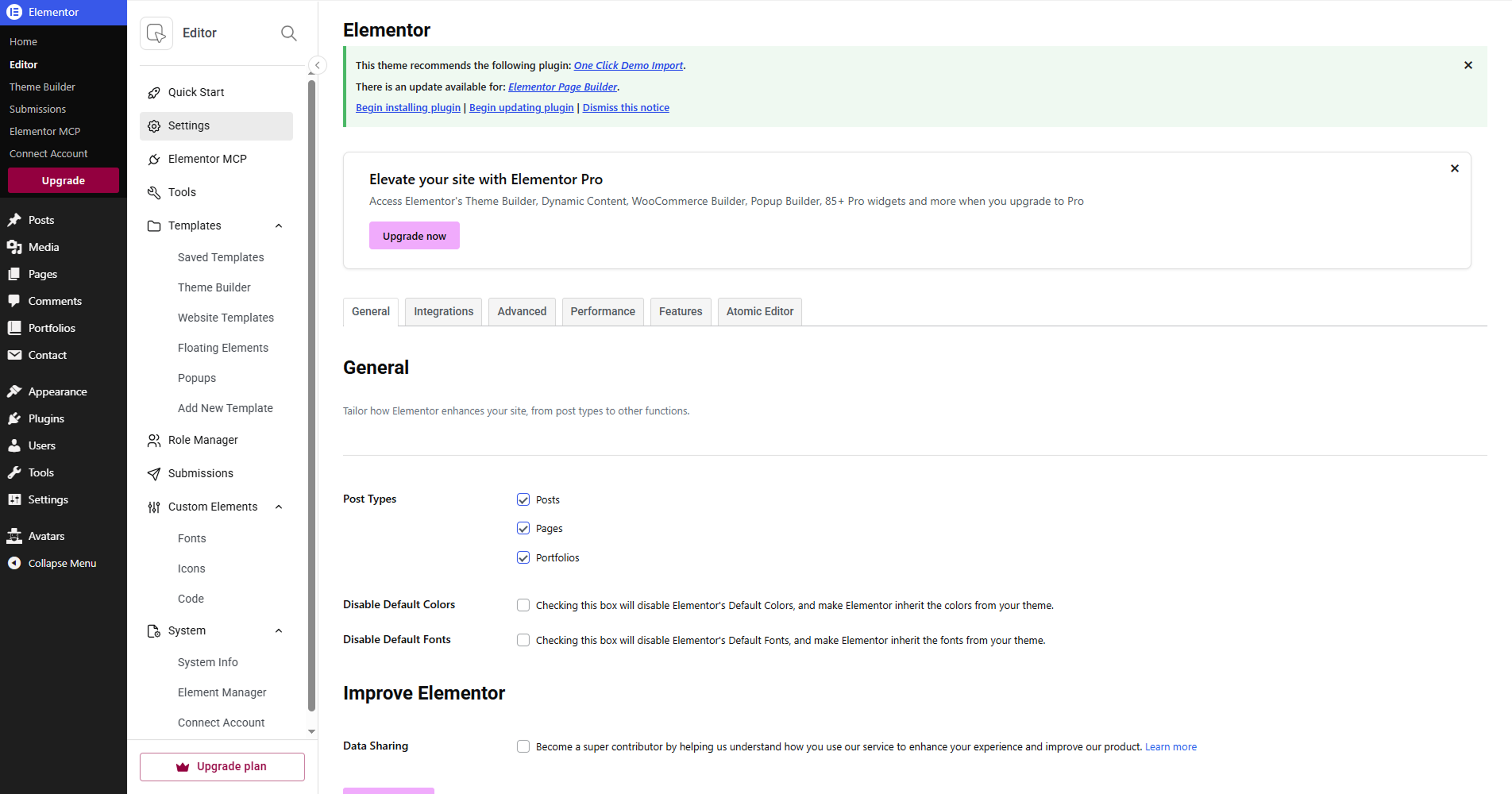
Enable portfolio items in Dashboard > Elementor > Settings.
Homepage / Post Page Setup
- Go to Settings > Reading.
- Set homepage to Static Page.
- Select your Homepage and Posts Page.
- Click Save Changes.

Menu
Menu Setup
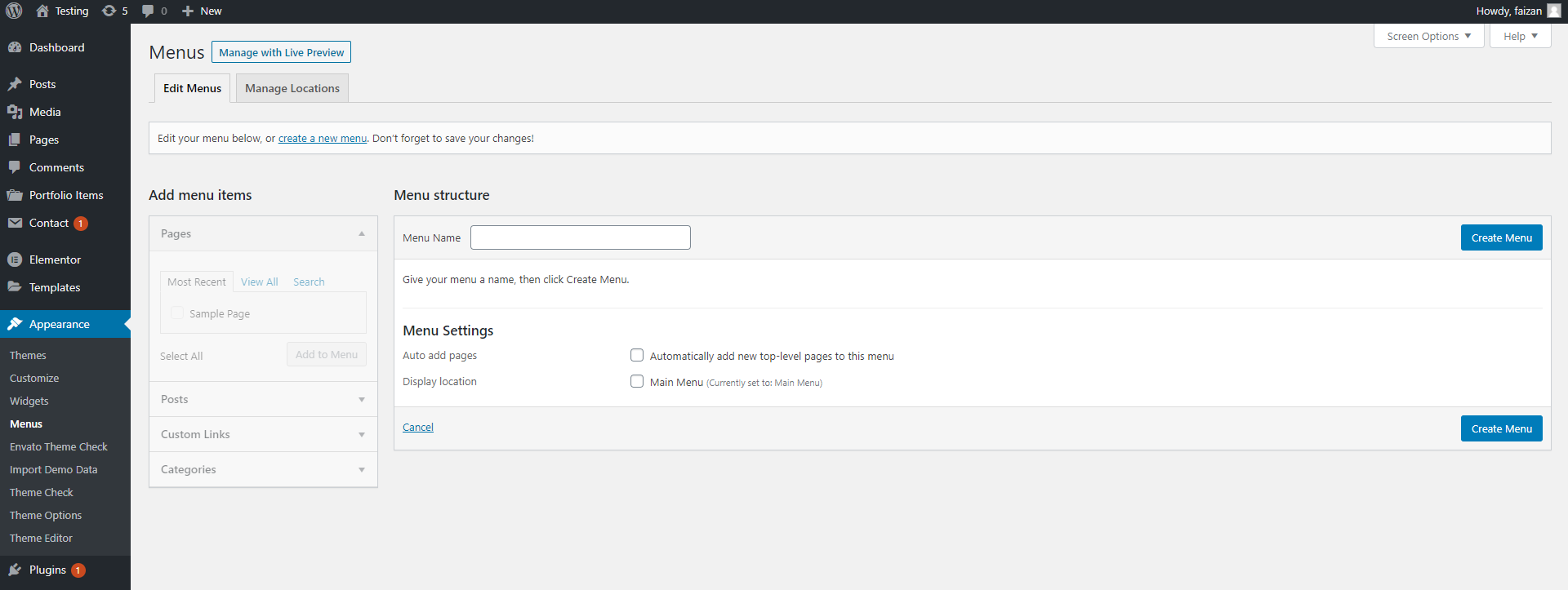
- Go to Appearance > Menus.
- Create a new menu, add name, click Create Menu.
- Check Main Menu under display location.
- Add menu items (Pages, Custom Links, Categories).
- Reorder menu items under Menu Structure.
Menu Customization
- Go to Appearance > Customize > Header.
- Make required changes and click Publish.
Portfolio Post / Single Portfolio Setup
Create a New Portfolio Item
- Go to Portfolio > Add New.
- Enter title, categories, tags, featured image.
- Click Publish.
- Edit with Elementor to customize layout.
Portfolio Post Settings
- Portfolio Item Settings: Control title and category shown with thumbnail.
- Portfolio Type Settings: Link thumbnail to external URL instead of single portfolio page.
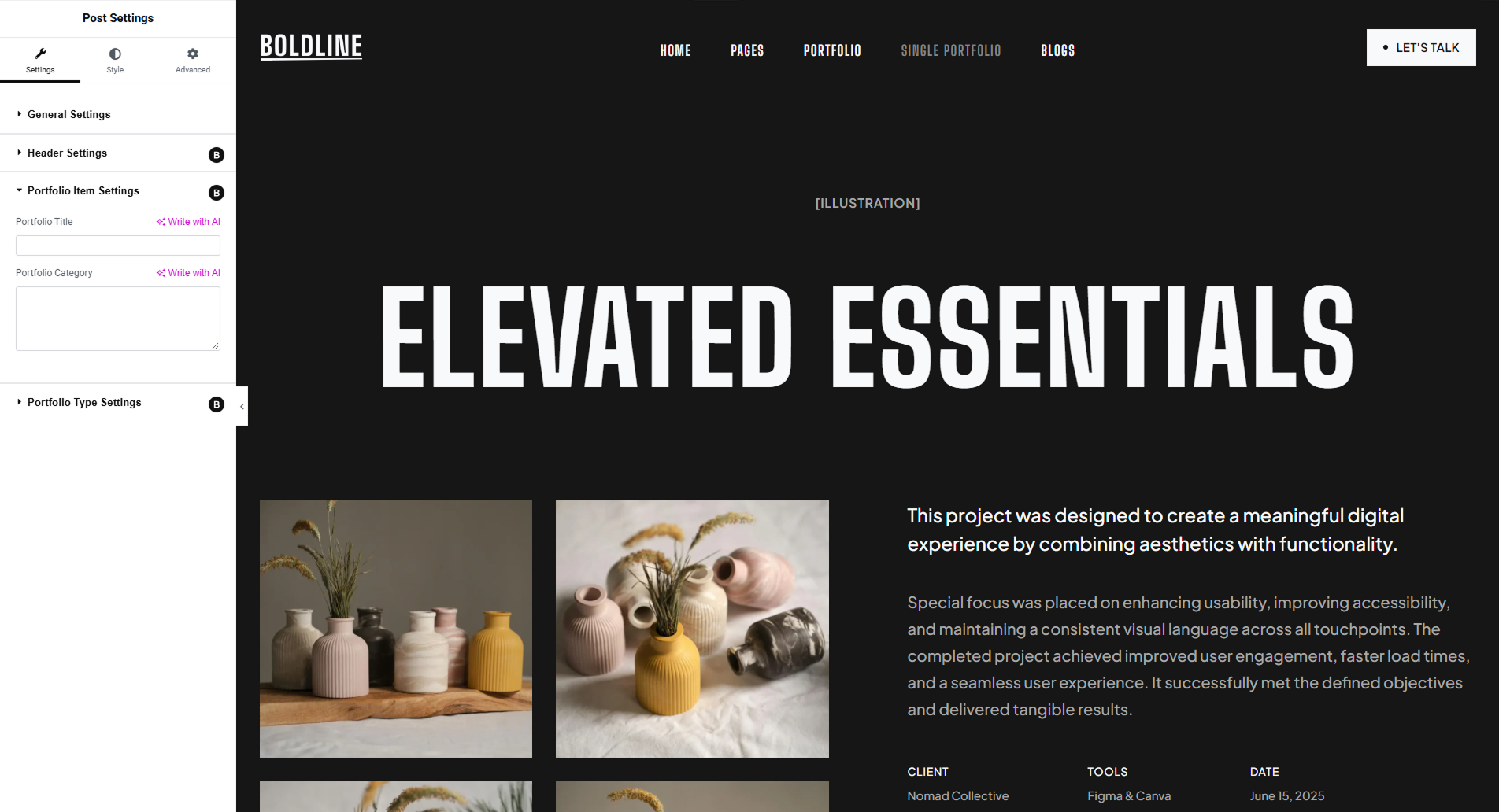
All single portfolio pages are built using the page builder, giving full control over design.
Blog Posts
Create a Blog Post
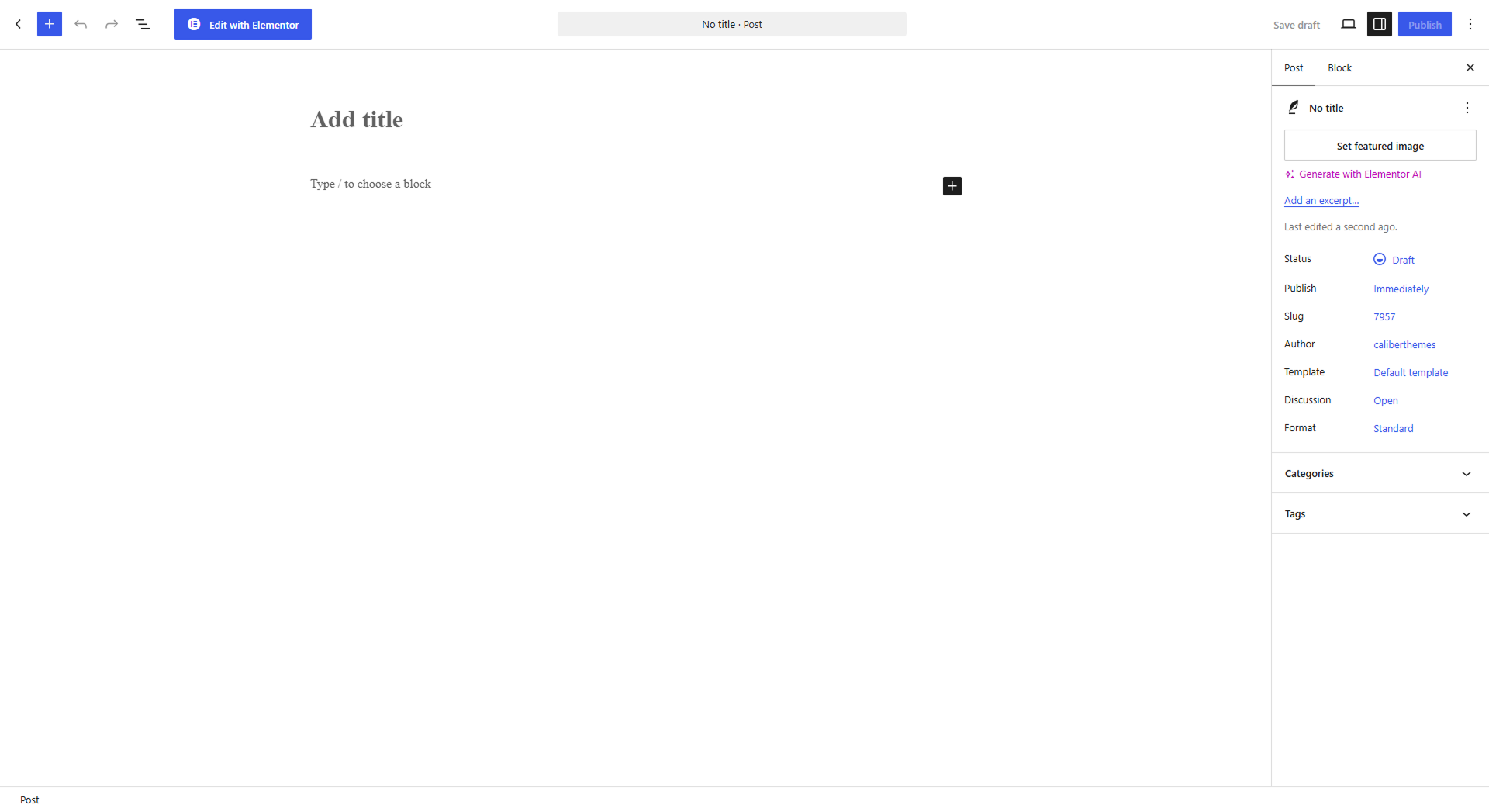
- Go to Posts > Add New.
- Enter post title and content.
- Optionally enter an excerpt.
- Choose categories and tags.
- Set featured image.
- Click Publish.
- Edit with Elementor for layout customization.
Create Blog Post Category
- Go to Posts > Categories.
- Enter category name and click Add New Category.
All single blog posts are built using Elementor, giving full layout control.
Contact Form
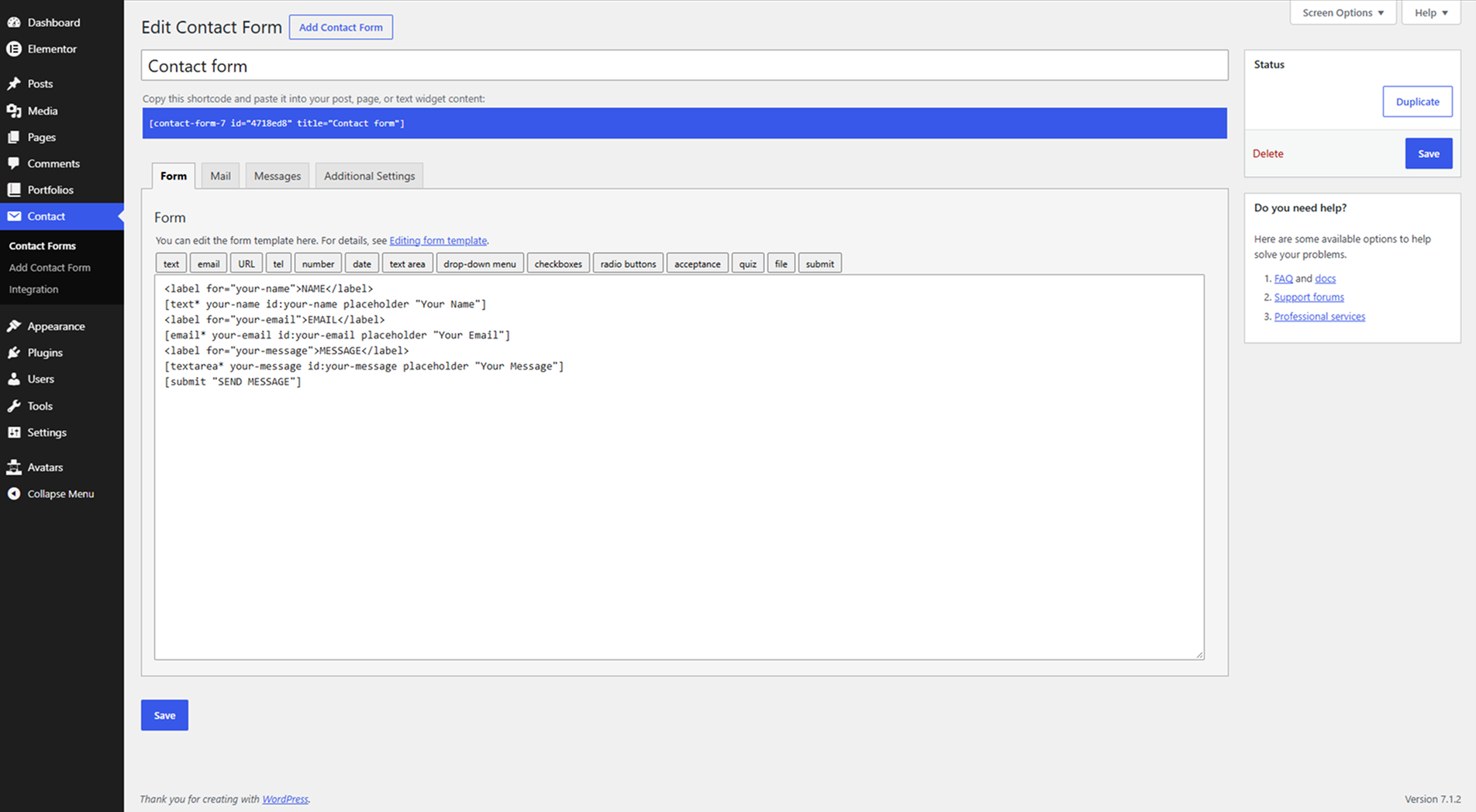
Contact forms are created using Contact Form 7.
Create a Contact Form
- Go to Contact > Add New.
- Enter form name.
- Set mail options and click Save.
Add Form to Page
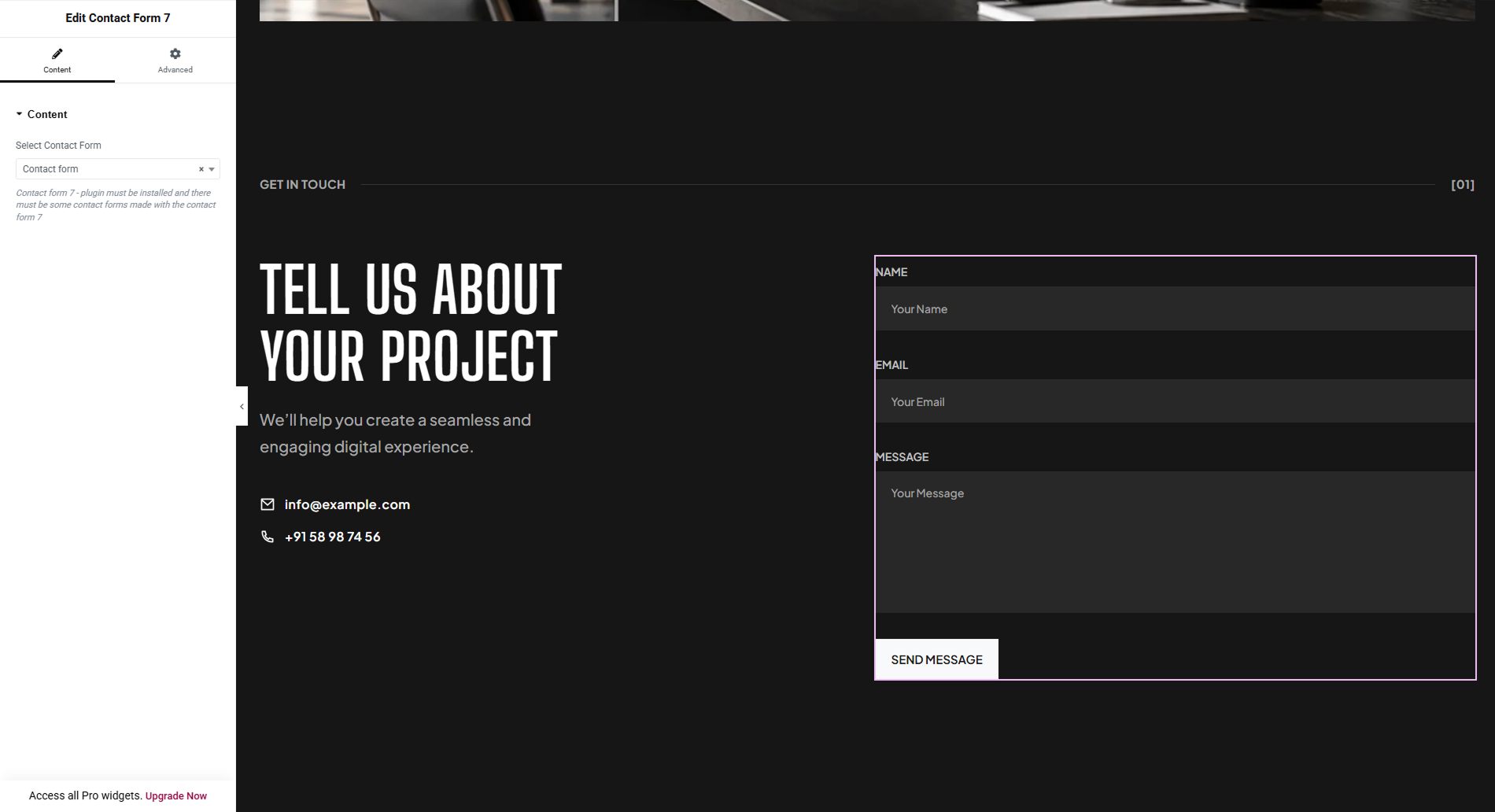
- Edit desired page with Elementor.
- Drag Contact Form 7 widget onto page.
- Select your form from dropdown and click Publish.
Select Theme Contact Form
After demo import, select 'Contact Form' in the widget and click Publish.
Plugin Installation
After activating the theme, click Begin installing plugins when prompted.
3rd Party Plugin Installation
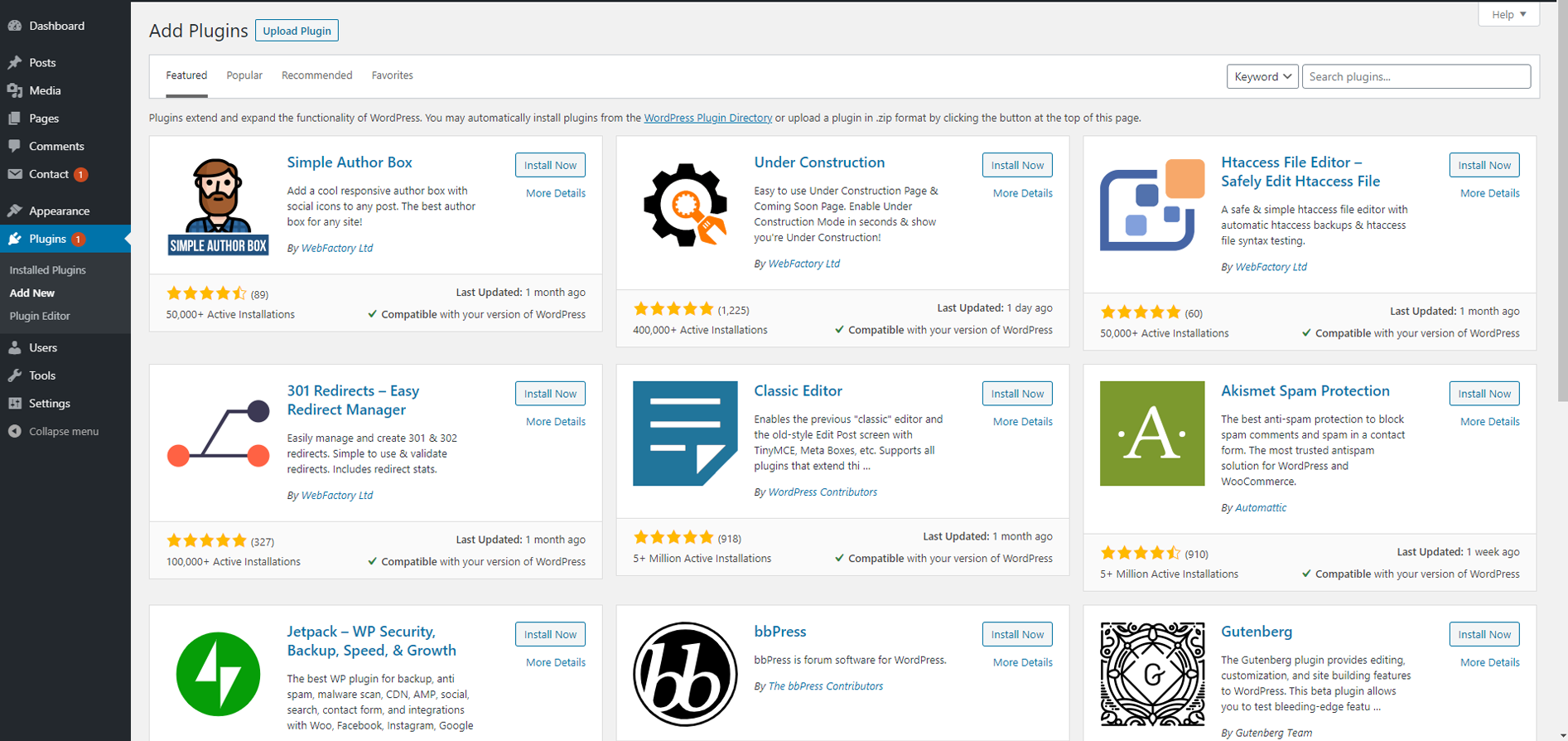
- Go to Plugins > Add New.
- Install via upload or search method.
- Click Activate.
Shortcodes
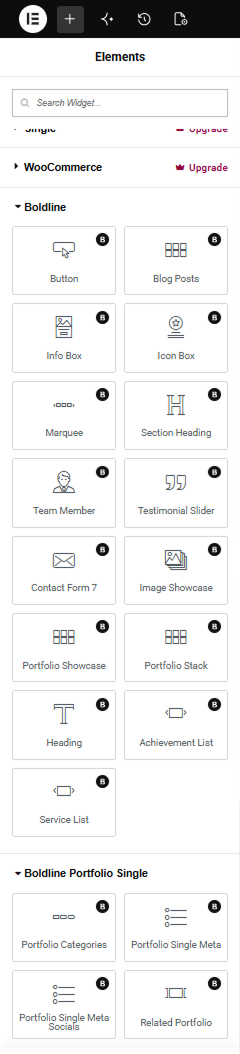
Boldline includes 19 custom shortcodes and widgets. You can add them via Elementor Widgets panel.
All shortcodes are flexible, fully styled, and compatible with Elementor.
Color Customization
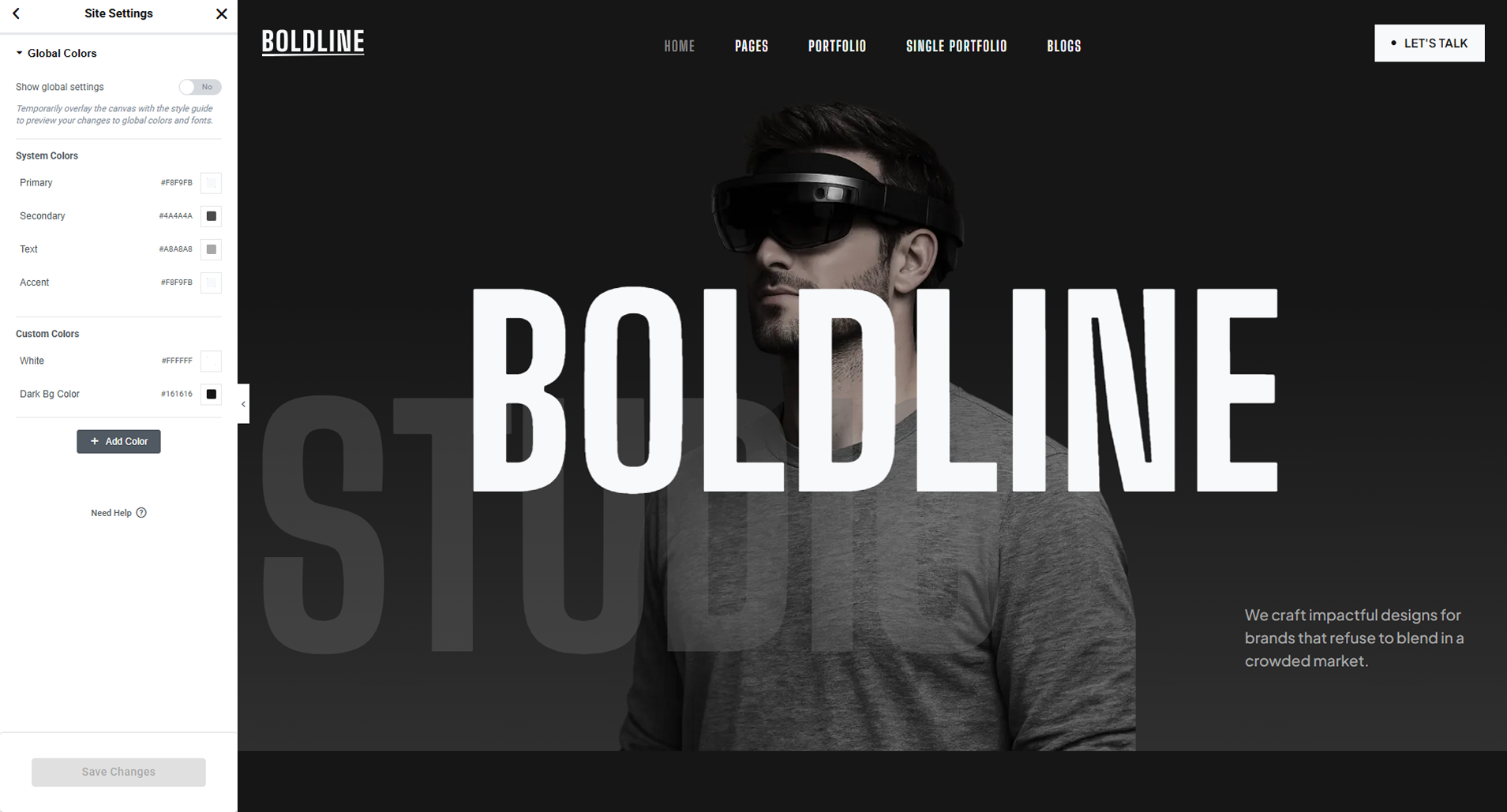
Boldline uses Elementor’s Global Colors feature to manage a consistent color palette across your website.
- Edit the page using Elementor.
- In the Elementor panel on the left, click the Site Settings button at the top-left.
- Navigate to Global Colors.
- Choose your preferred colors and click Update to save the changes.